Developer Apps are created and use to access the resources provided by API Products. Each apps registration selects API product where it will be use and the Apigee module will generate a single key (customer key) to be use on the said API Products.
ACCESS DEVELOPER APPS LIST
To access Developer App list, on Main Navigation, click on Apps menu link.

After clicking the said menu link, the site admin/user will be redirected to the account's Developer Apps List page.
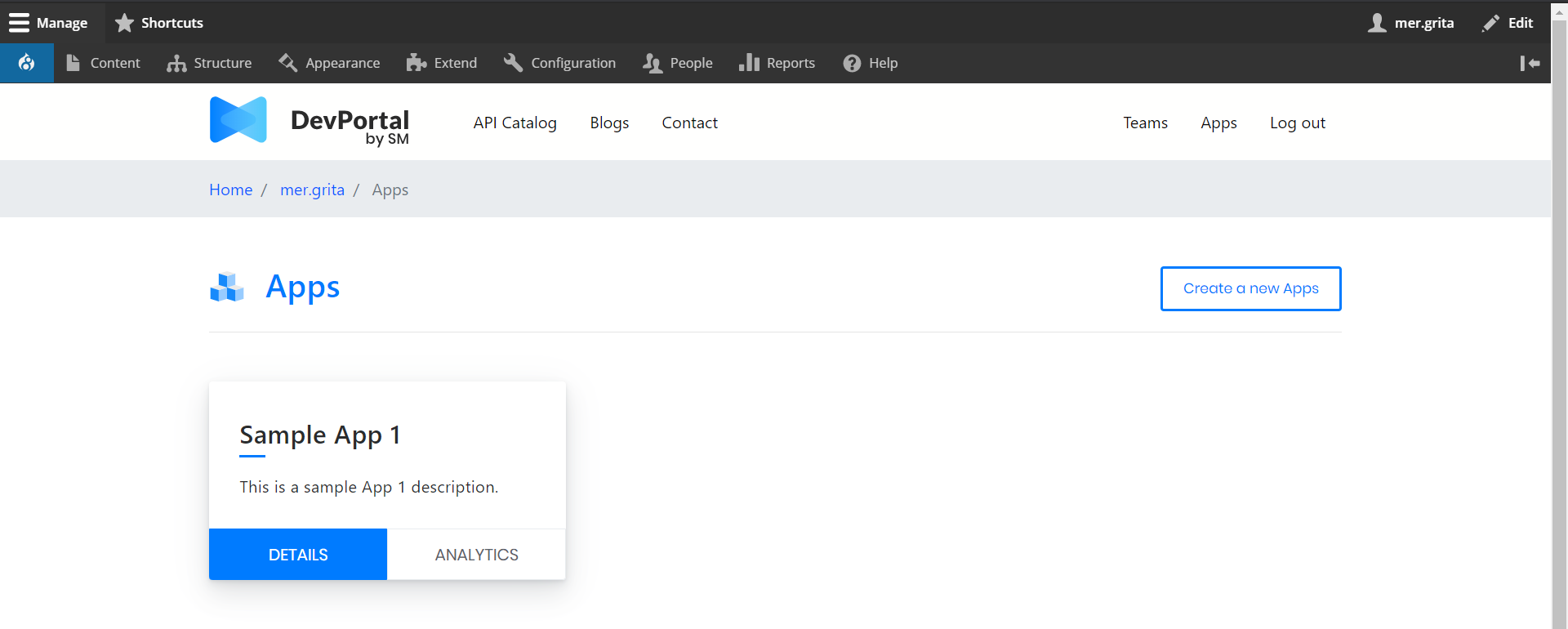
Note: Each Account has it's own individual developer apps list once the user is registered to the Developer Portal Site.
ADDING NEW DEVELOPER APP
- To add new developer app, on Developer Apps List Page, click on Create a new Apps button which can be seen on the right side of the page.

- On the Add Developer App page, the site admin/user needs to add the following:
- App name [required] - Name of the app
- Callback URL [optional but recommended] - Callback Url
- Description [optional but recommended] - short description about the App
- APIs [required] - API Products for which the App can be tag and connected with
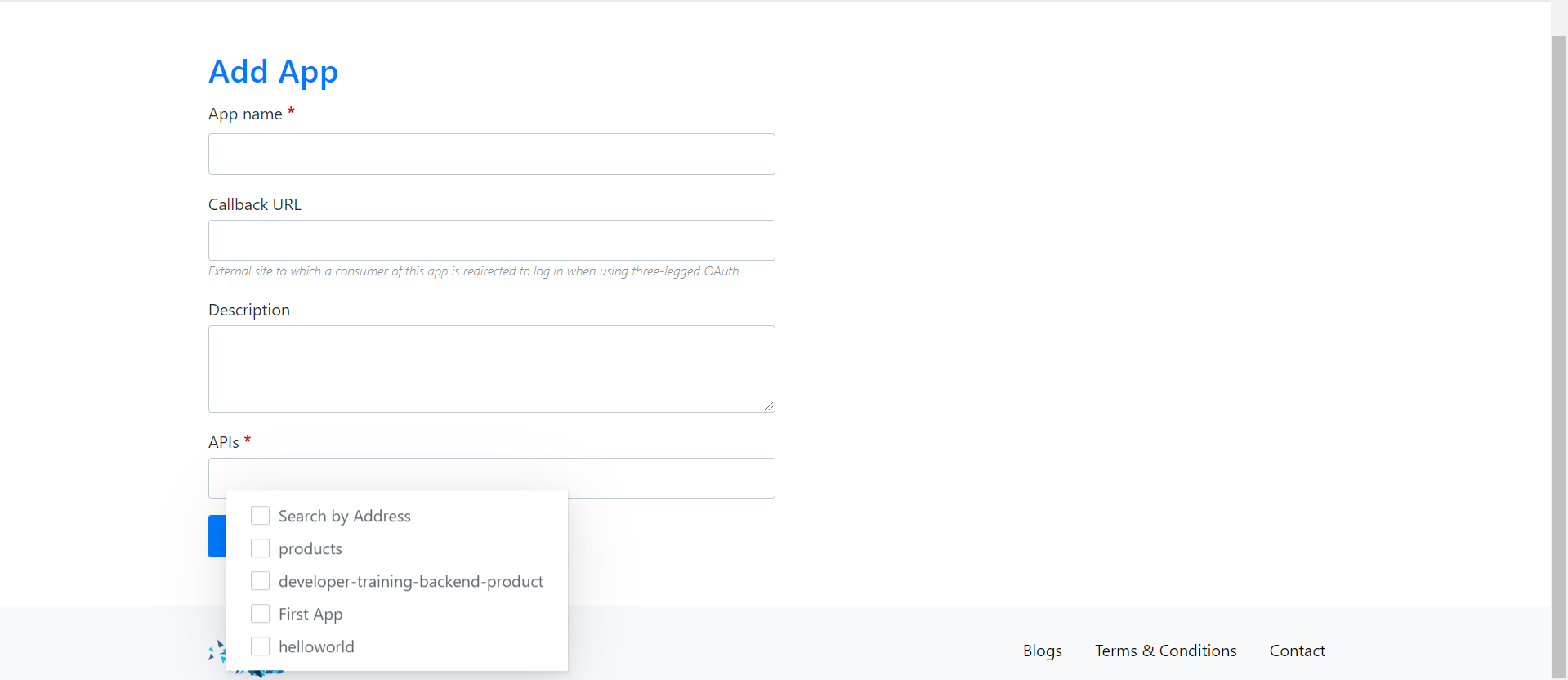
- Once all fields are filled up, click Add app button to save the Apps and be it display on the Developer Apps List.
VIEW DEVELOPER APP DETAILS
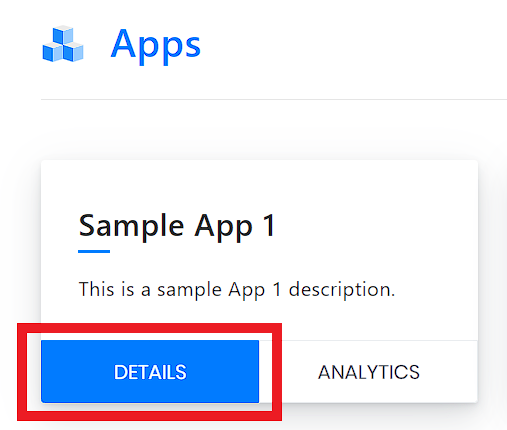
- To view the details of each developer app created, on the Developer Apps List page, click on Details tab link which can be seen at the bottom of each Developer App boxes.
- Once click, the site admin/user will be redirected to the Detailed page of the Developer App. Listed or what can be viewed in the page are the Name and Description of the app on the top portion, the Consumer Key and Secret generated (which can be viewed by clicking the View Icon, and copied by clicking on the Copy Icon), App status, Callback URL and Expiry Date.
- Below, the list of API Products that are tagged to this App.

EDIT DEVELOPER APP
- To update the details of the Developer App, from the Developer App Details Page, click on the dropdown button beside Back to Apps List button > click Edit link.
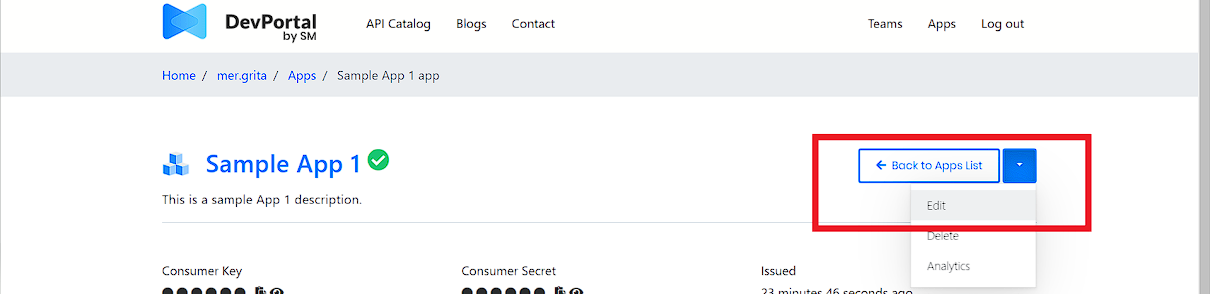
- The site admin/user will be redirected to Edit Developer App page to edit/update existing details of the said app.
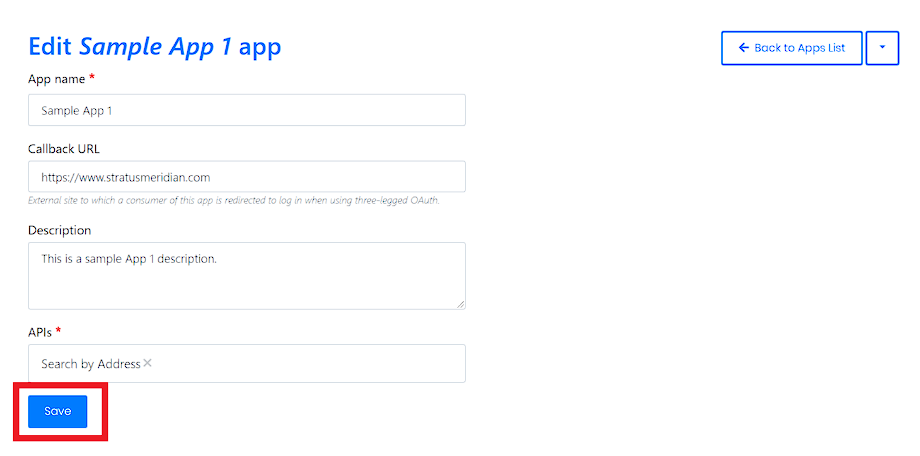
- Once all details are updated, click on Save button, and the updates will be saved and reflected.
DELETE DEVELOPER APP
- To delete the developer app from the list, from the Developer App Details Page, click on the dropdown button beside Back to Apps List button > click Delete link.

- The site admin/user will be redirected to the Confirmation Page.
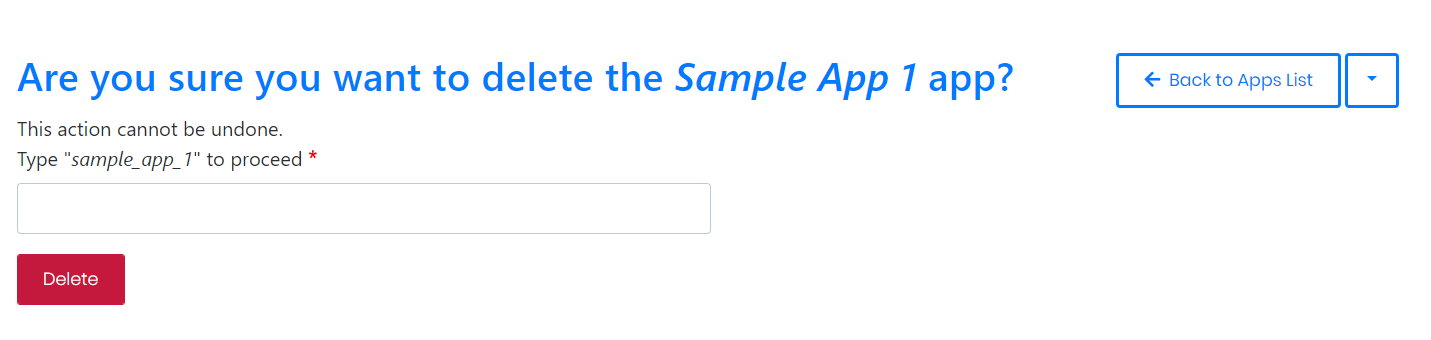
- The site admin/user needs to type the word specified in the instruction guide to the provided text box. Once done, click Delete button and the App will be deleted from the list.
ACCESS DEVELOPER APP ANALYTICS
- To access analytics page of the Developer App, from the Developer App Details Page, click on the dropdown button beside Back to Apps List button > click Analytics link.

- From the analytics page, the site admin/user will be able to see graphical representation of activities happened in the said developer app. The user/site admin must need to use the filter boxes to select which activity or graphical representation he / she should like to see or analyze.

Comments
0 comments
Please sign in to leave a comment.