Basic Page content type is another way to create contents, but the difference in this content type is that this does not have any paragraph module integration, but rather this page can be use for doing informative display of page like About Us, Terms and Conditions, Privacy Policy, etc.
Just like Landing Page or Article content types, after site's installation comes with default contents.
ACCESS BASIC PAGE CONTENT LIST
- To access Basic Page Content List, on the Admin Toolbar click on Content menu link.

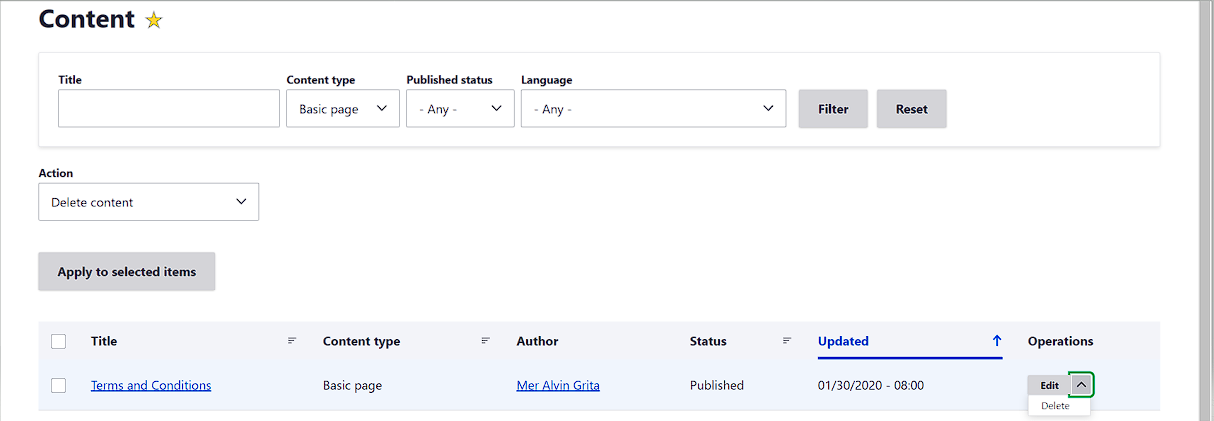
- You will be redirected to Content Dashboard page. In this page, all contents are being listed regardless of its type. To filter Basic Page Content, there is a search box available on top of the page.
- On Content Type Select box, choose Basic Page and click Filter button.
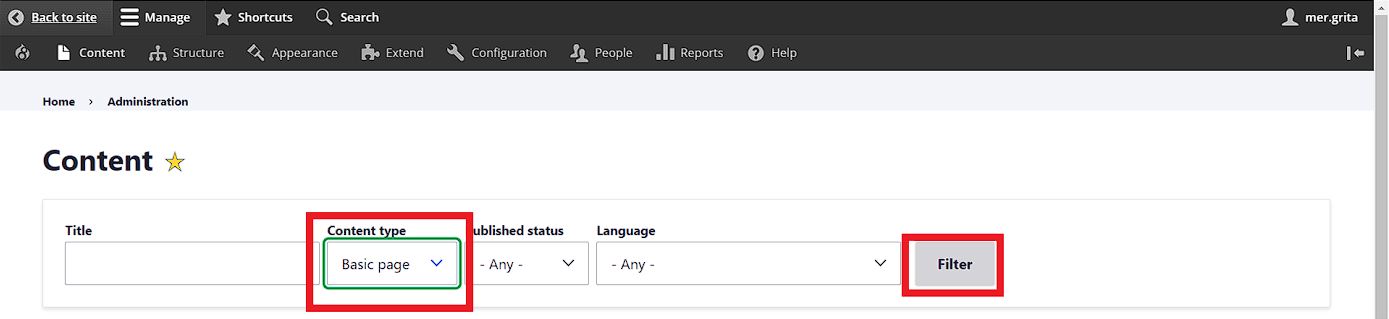
- Once done, all Basic Page only will be listed on the Content Dashboard Page.

CREATE NEW BASIC PAGE
- FOR NON-CLARO THEME (ADMINIMAL OR SEVEN)
- If the Admin Theme used are either Seven or Adminimal Theme, on the Content Dashboard, click on the Add content button (above the search box).
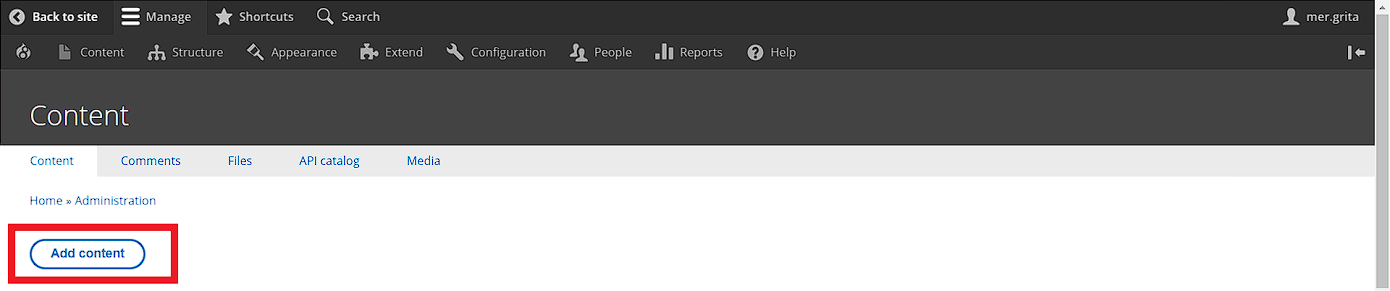
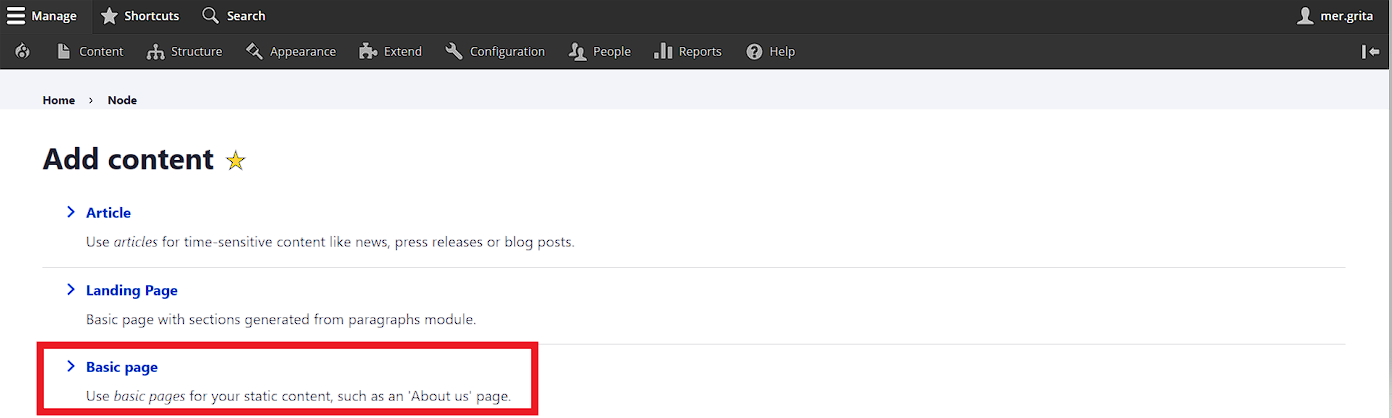
- After clicking, the site admin/user will be redirected to Add content dashboard page. Listed in the page are the available content type for which you can add content. In this particular documentation, we are adding contents to basic page. So click Basic Page link to redirect to Add Basic Page.

- If the Admin Theme used are either Seven or Adminimal Theme, on the Content Dashboard, click on the Add content button (above the search box).
- FOR CLARO THEME (DEFAULT ADMIN THEME)
- For Claro Theme, put your cursor on Content Menu link > click Add content.

- From the Add content dashboard page, click on Basic Page link.
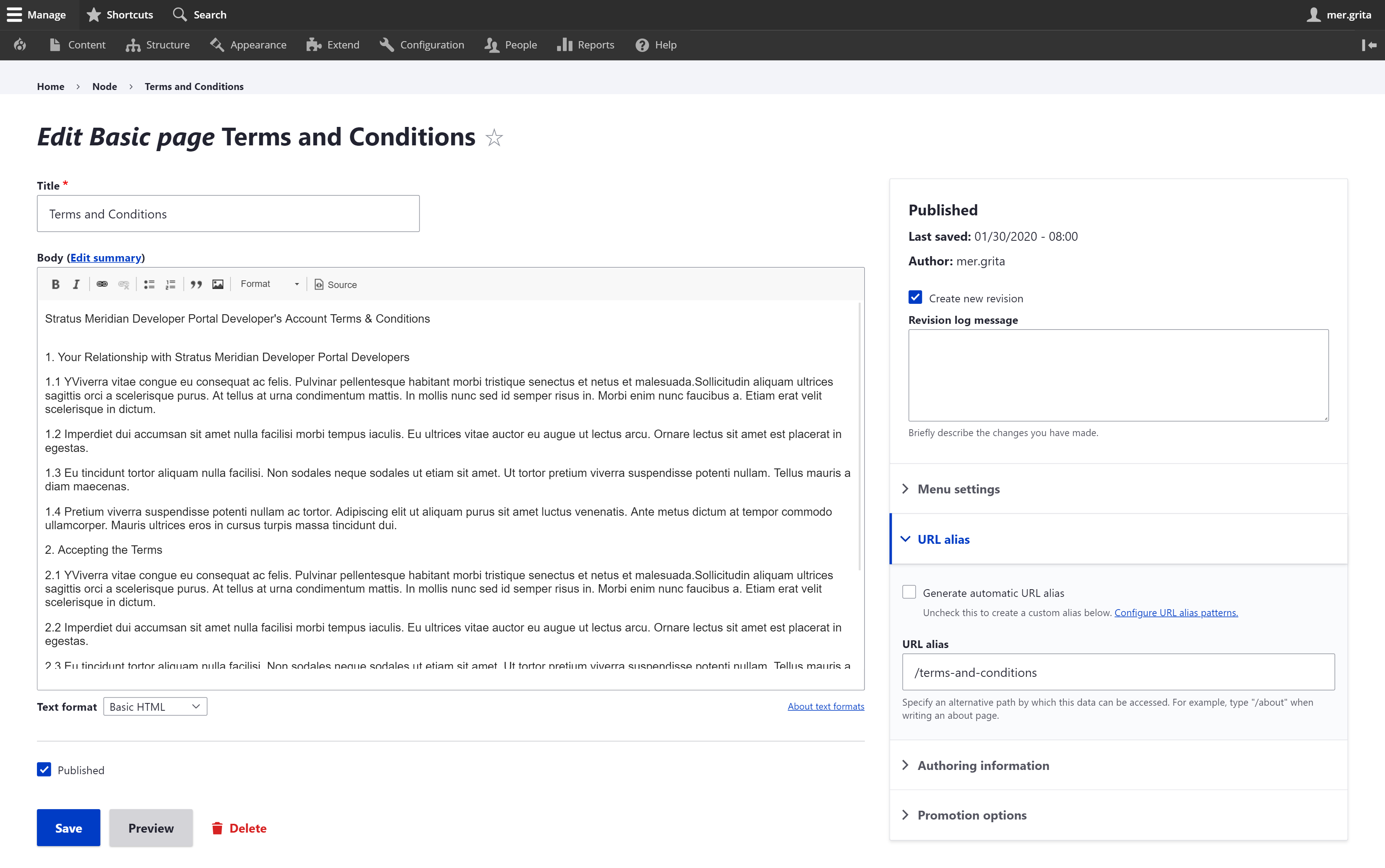
- From the Add Basic Page dashboard page, you need to fill in the following fields:
- Title - Title of the Page [Required]
- Body - main content of the page. This is where you will add the context of the basic page [Optional but recommended]
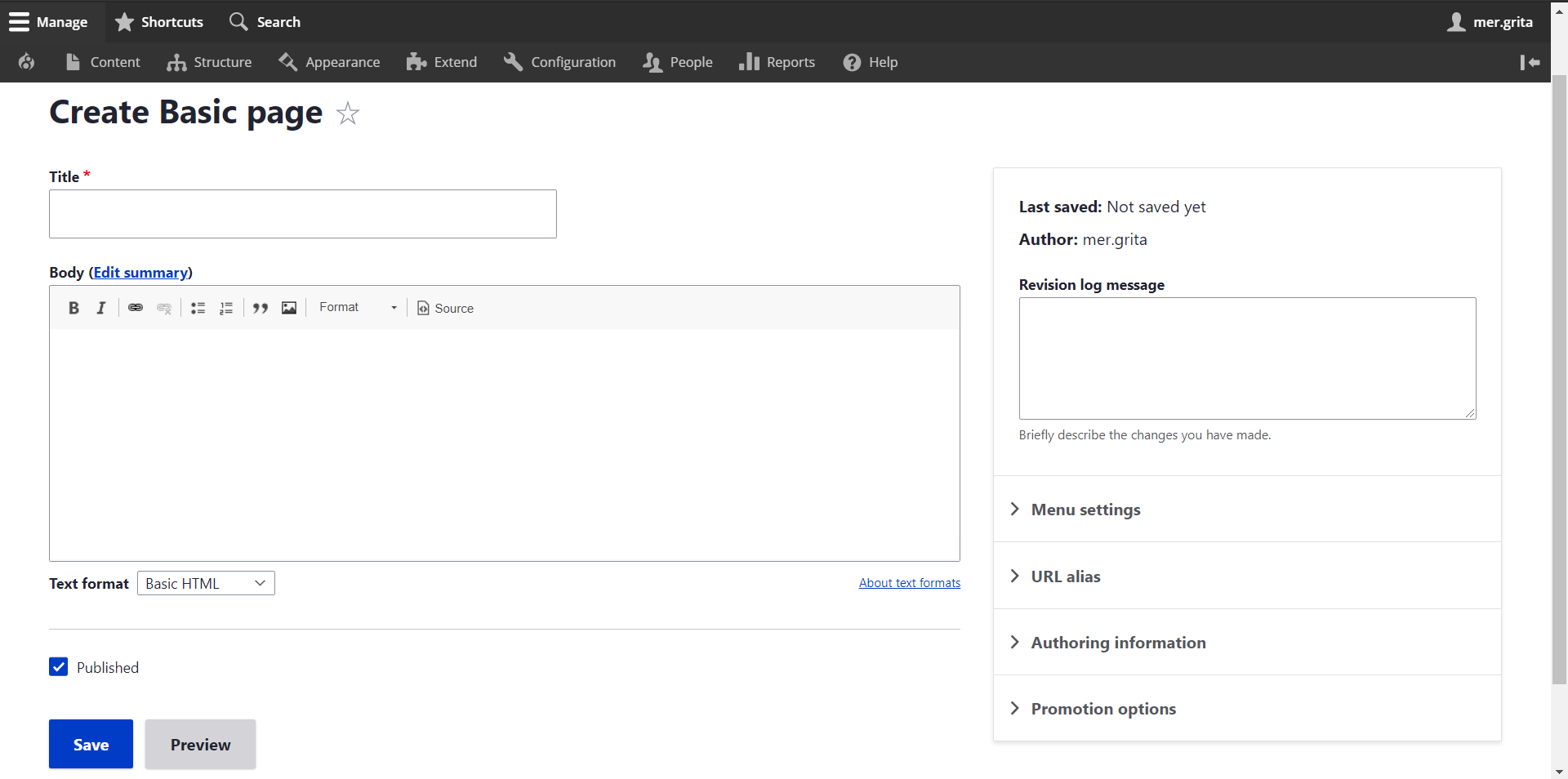
- After information is completed, click on Save button and the content will be available for reading and usage.
- For Claro Theme, put your cursor on Content Menu link > click Add content.
EDIT BASIC PAGE CONTENT
- To edit existing basic page content, from the Content Dashboard, filter the basic page content you wish to edit or update. Use the search box on the said page. (See ACCESS BASIC PAGE CONTENT LIST).
- On the right side of each listed content, there are two operational links available: Edit and Delete links (click on the dropdown button to see Delete link). Click on Edit link.
- From the Edit Basic Page, site admin/user can now update the existing content (paragraph types and associated content), and once done with all the updates, click Save button to update and save the changes.
DELETE ARTICLE CONTENT
- To delete existing Basic Page content, from the Content Dashboard, filter the article content you wish to delete. Use the search box on the said page. (See ACCESS ARTICLE BASIC PAGE LIST).
- On the right side of each listed content, there are two operational links available: Edit and Delete links (click on the dropdown button to see Delete link). Click on Delete link.

- The site admin/user will be redirected to a confirmation page. Click on Delete button and the said content will be deleted from the dashboard and interface.

Comments
0 comments
Please sign in to leave a comment.